Tested task automation
How to Automatically Create a HubSpot Follow-Up Task from a Website Form with Make
A narrow, evidence-labeled workflow for turning a qualified website form submission into an associated HubSpot follow-up task.
This guide covers one task only: receive a website form submission in Make, create or update the HubSpot contact, and create a follow-up task for a qualified lead. For the complete workflow—including the Gmail confirmation branch—see the full inbound lead follow-up guide.
Website form submission
  → Make custom webhook
  → HubSpot create or update contact
  → consent and lead-score filter
  → HubSpot follow-up task due in 24 hours
How evidence is labeled
Tested Completed in the EXP-003 controlled Human E2E Validation using real Make and HubSpot accounts with synthetic lead data.
Official Confirmed in current Make or HubSpot documentation, but not necessarily exercised in every possible configuration.
Not yet verified A production condition, interface detail, or result this experiment has not proved.
What you need
- A website form or form service that can send its submission to an HTTPS webhook.
- A Make account.
- A HubSpot CRM account and permission to authorize the Make connection.
- Synthetic test data; do not begin with a real prospect.
Official Make documents custom webhooks as URLs that external services can call over HTTPS. Make's HubSpot CRM app includes contact and task modules. See Make webhooks and the Make HubSpot CRM app documentation.
Tested The validated scenario used existing free accounts and created a synthetic HubSpot contact and associated follow-up task with $0 in new cash cost and $0 in additional API cost.
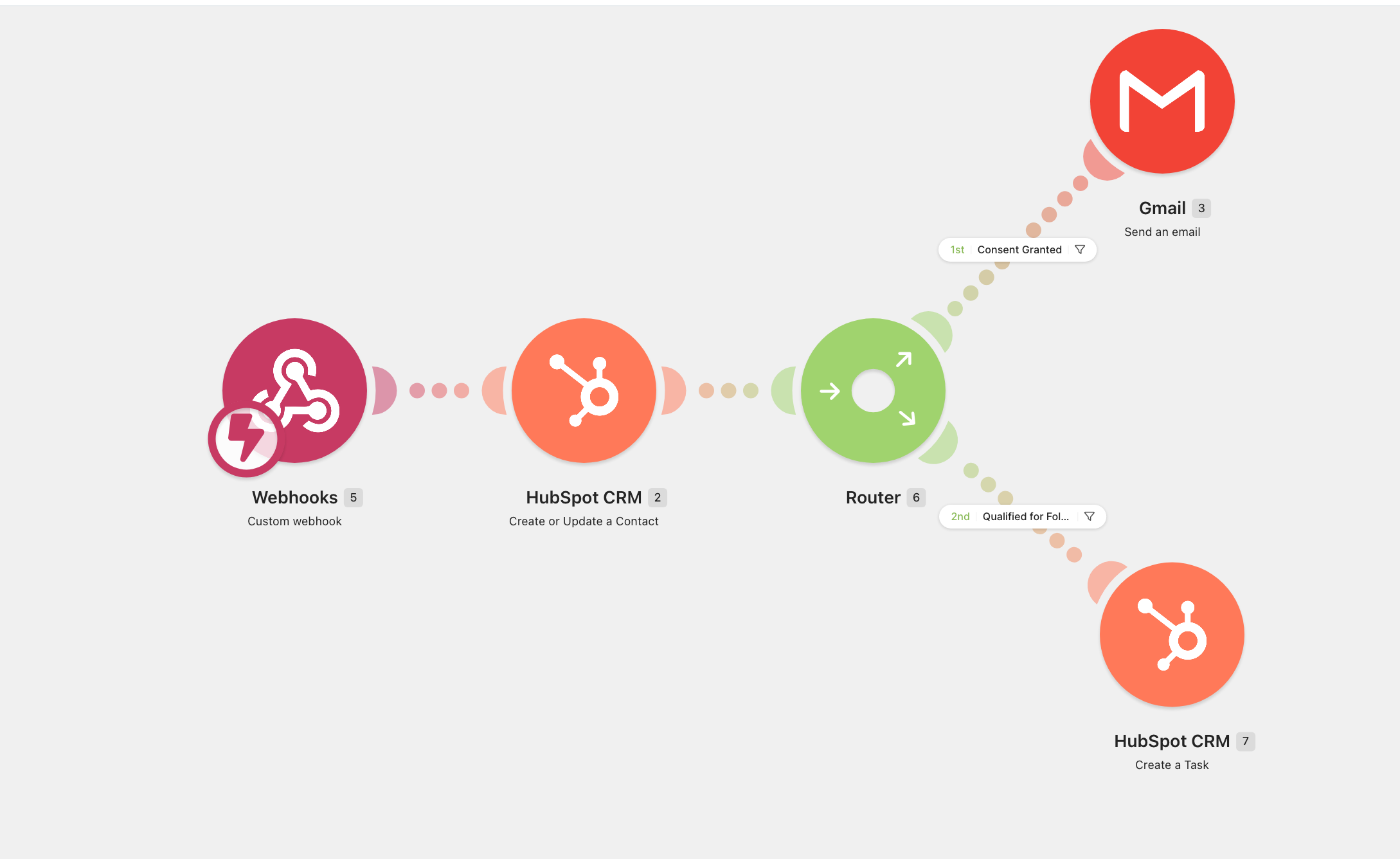
Step 1: choose the form fields
The tested task route depended on these values:
first_nameemailconsentlead_scoresource
You may also collect the requested service or message for the contact record, but do not send unnecessary personal or sensitive data into the automation. Define consent and qualification rules for your own business and jurisdiction. This is an operational example, not legal advice.
The field names above describe the tested logic; they do not need to match your form exactly. Map your form's equivalent fields inside Make.
Step 2: create the Make webhook
- Create a new Make scenario.
- Add Webhooks → Custom webhook as the first module.
- Create the webhook and copy its HTTPS URL.
- Configure your form platform or server-side form handler to send submissions to that URL.
- In Make, choose Run once, then submit one synthetic lead so Make can detect the incoming fields.
Official Make says webhook scenarios usually execute immediately after the webhook receives a request. The platform also stores incoming requests in a webhook queue for processing.
Tested A synthetic submission reached the custom webhook and its values were available for dynamic mapping in the tested scenario.
Not yet verified The EXP-003 evidence does not establish how every website builder sends webhooks. If your form tool cannot POST to an external webhook, you will need its native Make connector or a server-side handler, and that path requires a separate test.
Step 3: create or update the HubSpot contact
- Add HubSpot CRM → Create or Update a Contact after the webhook.
- Create a Make connection and complete HubSpot OAuth authorization.
- Map the submitted email to HubSpot's email field.
- Map the first name and any other deliberately selected fields.
- Save the module and run the synthetic submission again.
Official Make's HubSpot documentation lists Create or Update a Contact and explains that the specified email is used to determine whether a contact is created or updated.
Tested Contact creation/update and dynamic field mapping both passed in EXP-003.
Important: in the tested workflow, this contact module ran before the qualification filter. The filter controlled task creation but did not prove that an unqualified or non-consenting submission was excluded from CRM storage. If your policy requires a consent gate before storage, move the gate earlier and test that different design.
Step 4: add the qualified-task filter
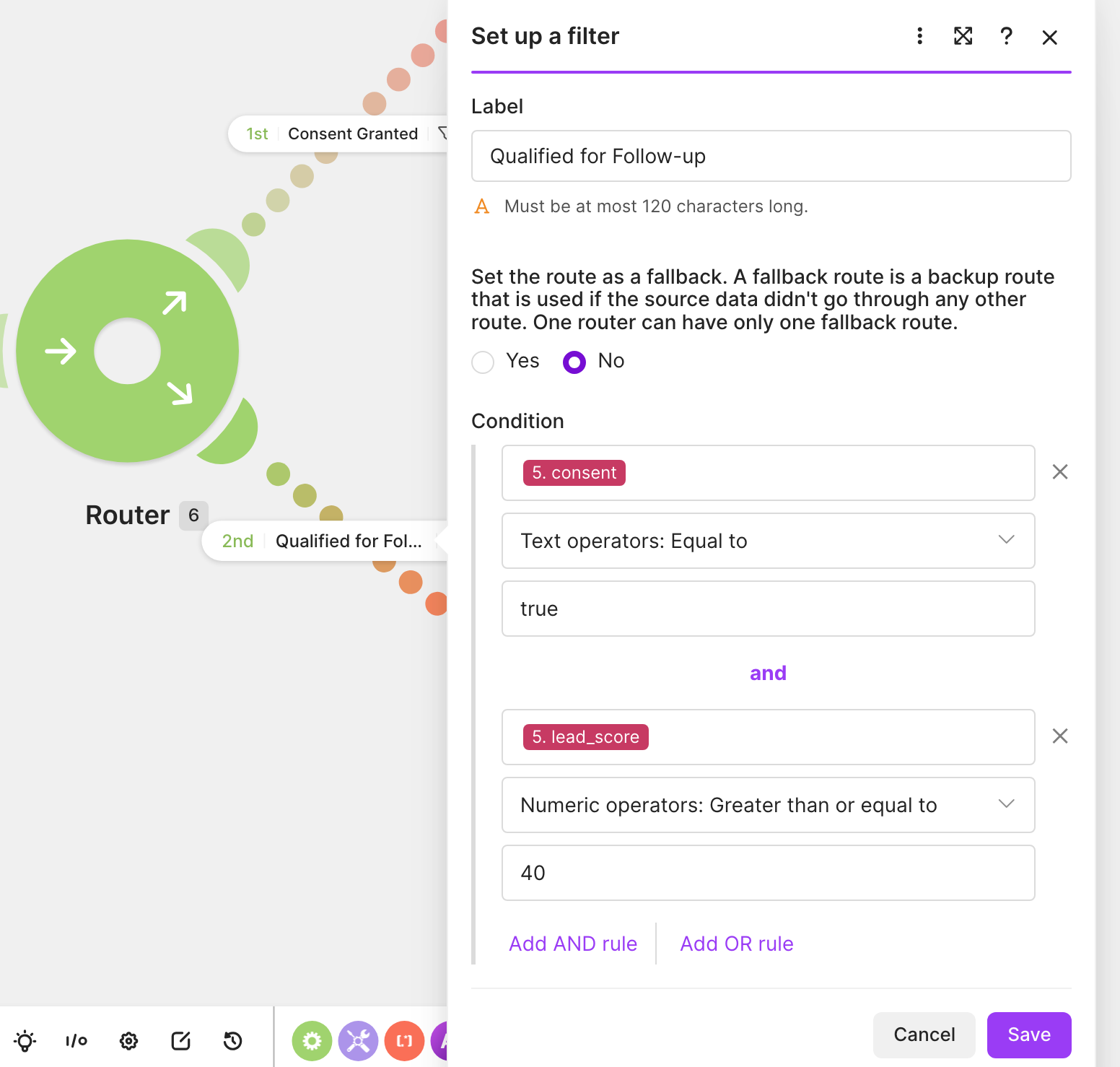
Add a router after the HubSpot contact module. On the route leading to the task, set both conditions:
consent = true
AND
lead_score >= 40
Official Make describes routers as a way to branch a scenario and filters as conditions that determine which data continues along a route. See the Make router documentation.
Tested The consent=true AND lead_score>=40 filter passed its E2E check. A WARM submission with consent=true and lead_score=55 passed the route. A BLOCKED submission with consent=false and lead_score=20 did not qualify for the follow-up route.
If your business does not use a lead score, define another explicit qualification rule and test it. Do not silently copy 40 unless that threshold has meaning in your own process.
Step 5: add the HubSpot follow-up task
After the filter, add HubSpot CRM → Create a Task. Configure the task so a person can understand it without opening Make:
- Subject: use a clear mapped value such as
Follow up with {{first_name}}. - Due date: set it to 24 hours after the scenario execution time.
- Contact association: map the HubSpot contact returned by the preceding contact module.
- Status: leave the task open or not started.
- Notes: include only the minimum context needed for follow-up.
Official Make's HubSpot CRM app lists Create a Task. Make's date documentation lists addHours(date; number); where the module accepts a mapped date, addHours(now; 24) is a supported way to calculate a time 24 hours after execution. See Make date and time functions.
Tested EXP-003 created a HubSpot follow-up task associated with the synthetic contact and due 24 hours after the test submission.
Not yet verified The archived evidence proves the resulting deadline, but it does not preserve every field label or the exact date expression entered in the then-current Make interface. Confirm the mapped due date in one controlled run before activating your scenario.
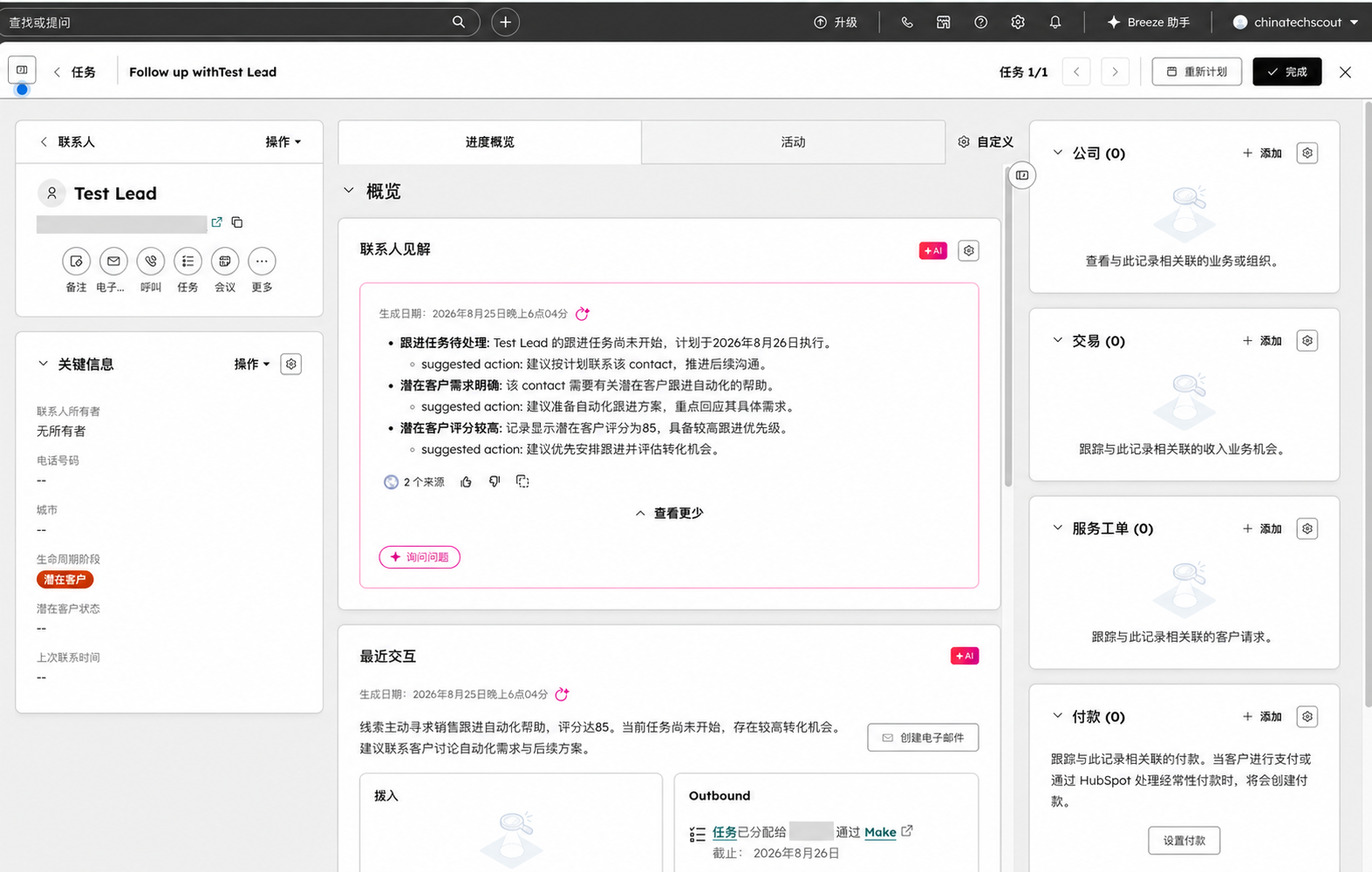
Step 6: run two controlled tests
| Test | Input | Expected result |
|---|---|---|
| Qualified | consent=true, lead_score=55 | Contact is created or updated; follow-up task is created and due in 24 hours |
| Blocked | consent=false, lead_score=20 | Contact behavior follows the module order; qualified-task route does not run |
Check both Make's execution detail and the HubSpot contact timeline. Confirm the task subject, contact association, status, and exact due time. A green scenario status alone is not enough.
Tested The qualified route and HubSpot task passed. The blocked input behaved as expected under the tested filter.
Why use Make for this task?
This workflow is useful when the form does not live in HubSpot, when qualification happens before task creation, or when the same submission must later branch to other tools.
Official HubSpot also provides native form automation. Its current documentation says available actions and limits depend on subscription, and task creation in simple form workflows is compatible with activated paid users. HubSpot's standalone workflow tool requires Professional or Enterprise for automated task creation. Check HubSpot's current form automation documentation before choosing an implementation.
This is not a claim that Make is always cheaper or better. It is the implementation that passed this experiment's controlled E2E test.
What this guide does not prove
- Not yet verified Reliability under sustained or concurrent lead volume.
- Not yet verified Task assignment behavior across a multi-user team.
- Not yet verified Escalation when a task becomes overdue.
- Not yet verified Suppression or task closure after a lead replies.
- Not yet verified Compliance for every location, industry, or form.
- Not yet verified Customer outcomes, time savings, conversion improvement, Affiliate clicks, or revenue.
For the larger workflow with a consent-gated Gmail confirmation and testing notes, read How to Automate Inbound Lead Follow-Up with Make and HubSpot for Free.
Tool links
- Create a Make account (affiliate link)
- Explore HubSpot CRM (direct, non-affiliate link)
Questions or corrections? Email [email protected].